Reference Panel for Aseprite
A downloadable tool for Windows
Keep your references where you need them: inside Aseprite.
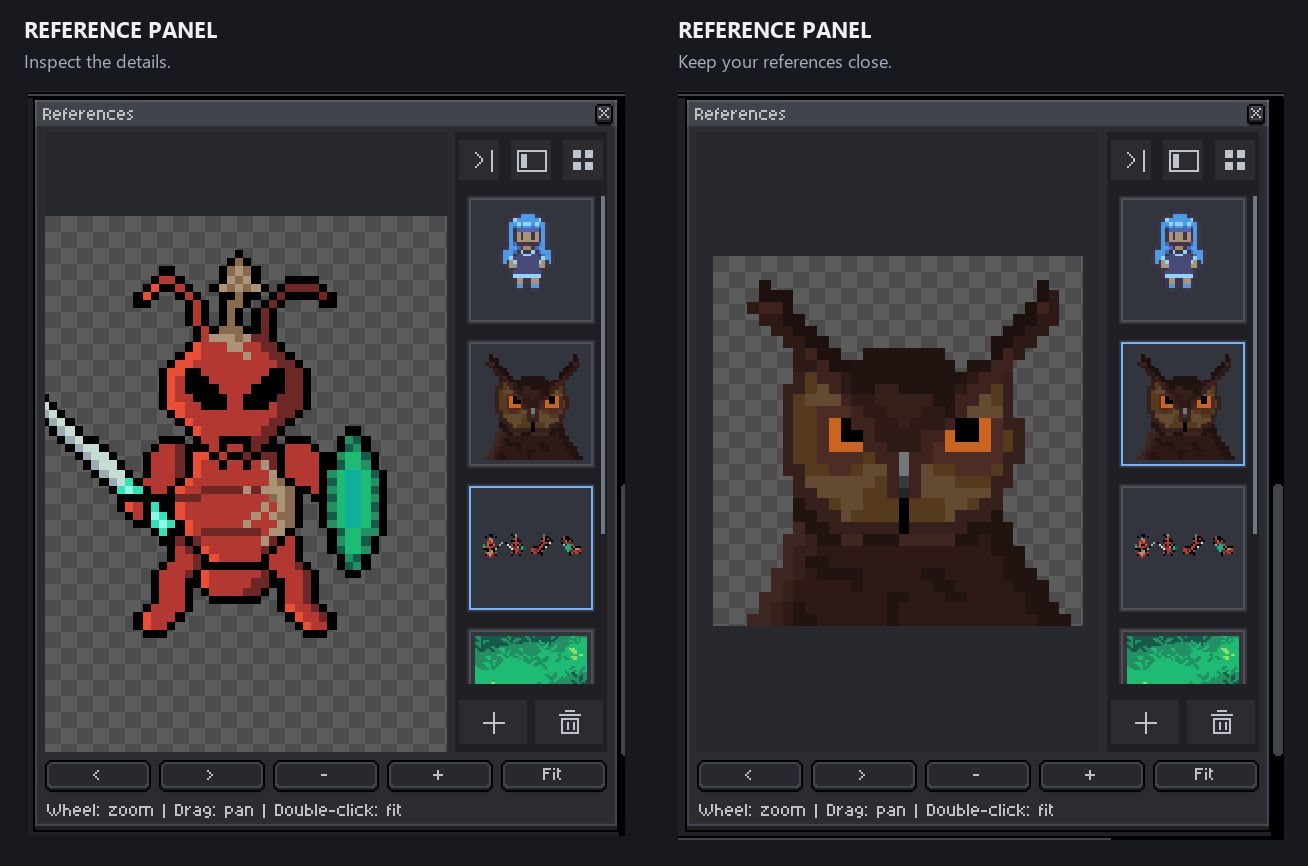
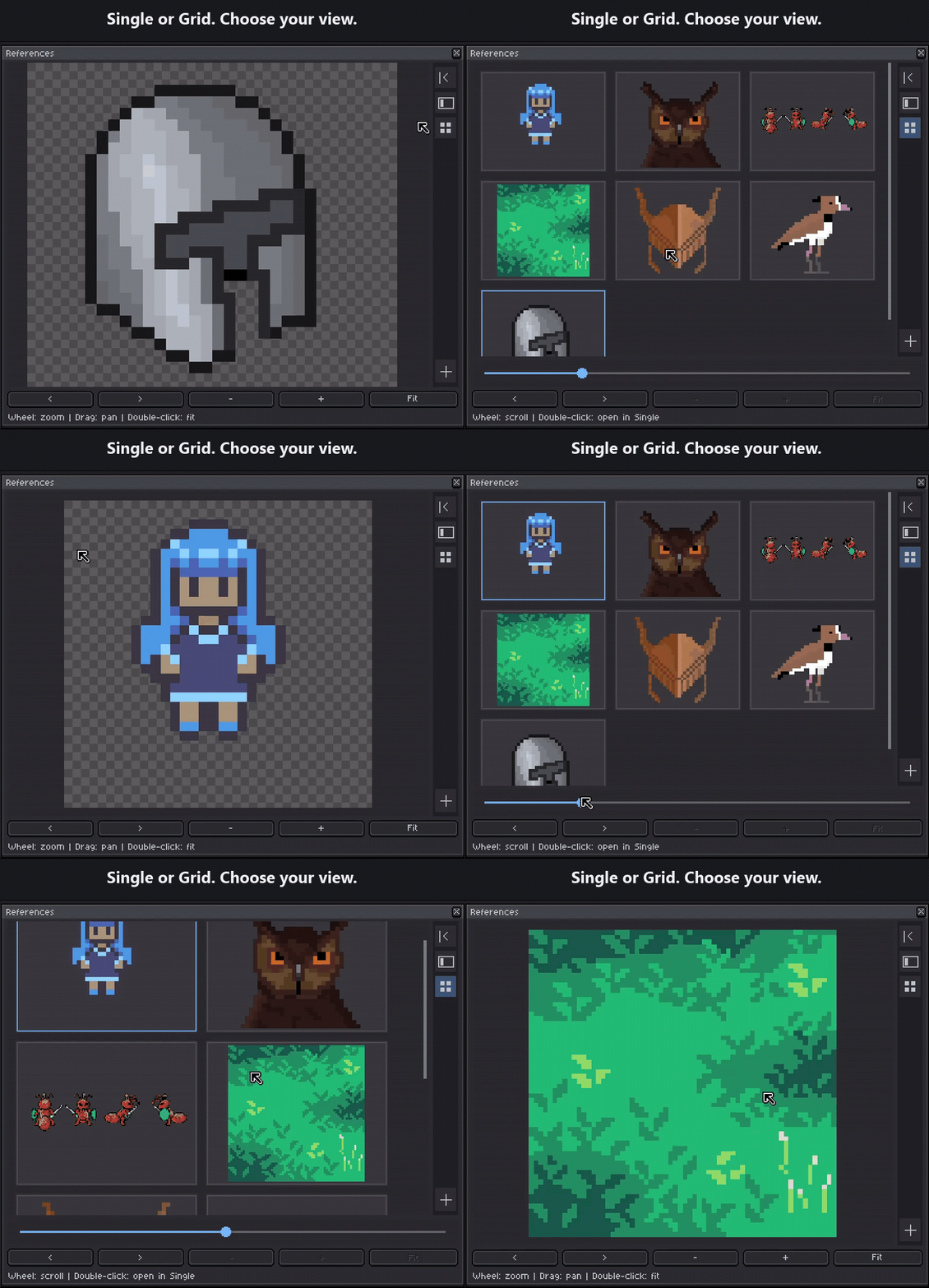
Reference Panel adds a floating reference viewer to your workspace. Add multiple images, inspect details with zoom and pan, or view your collection in a grid.
Each drawing keeps its own references and panel layout, so you can switch between projects and pick up where you left off.
Features
- Multiple references per document — Add several images at once.
- Single & Grid views — Focus on one image or browse your collection.
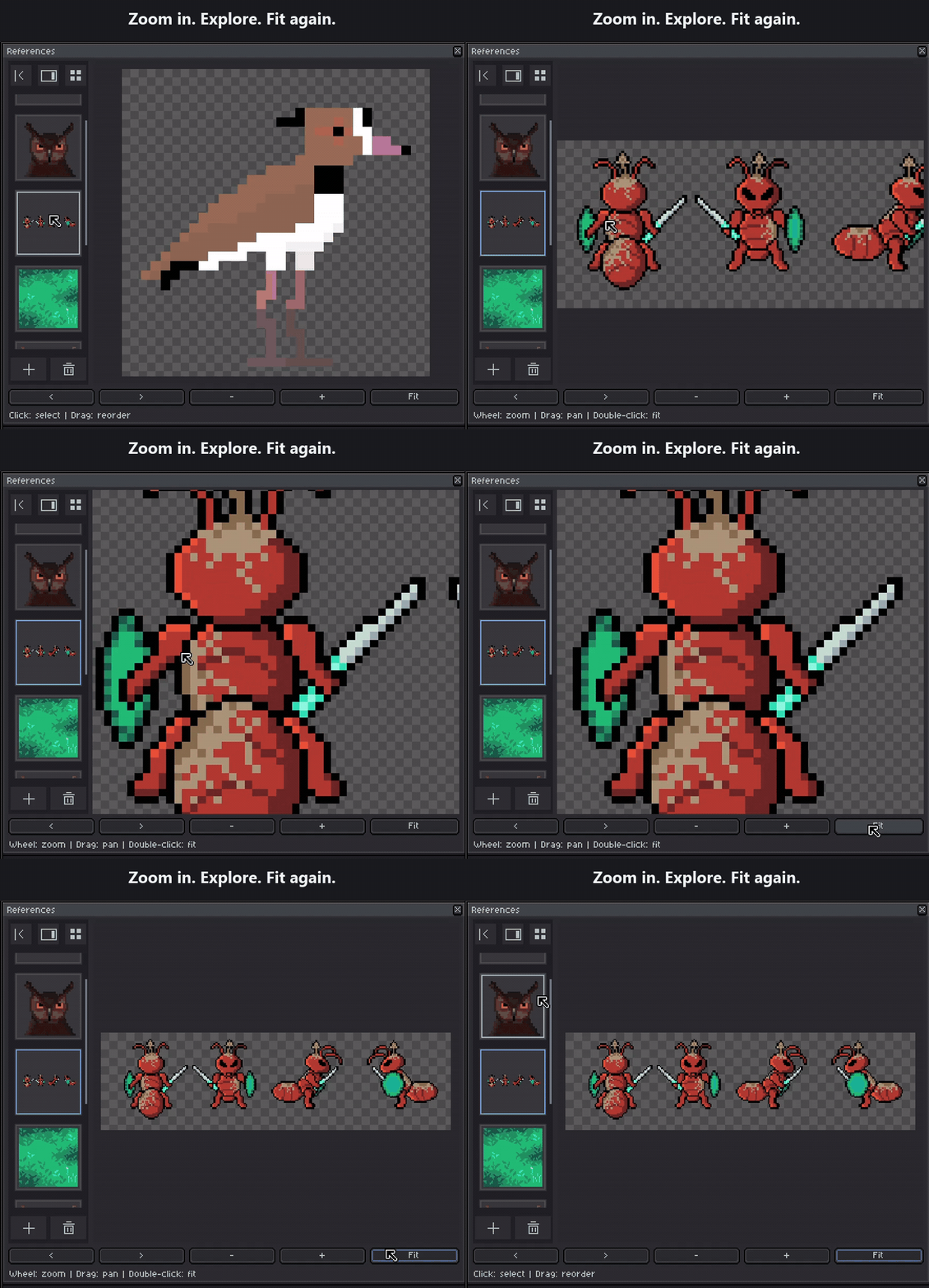
- Zoom, pan & Fit — Inspect details and quickly fit an image to the panel.
- Vertical thumbnail sidebar — Switch between images without leaving your drawing.
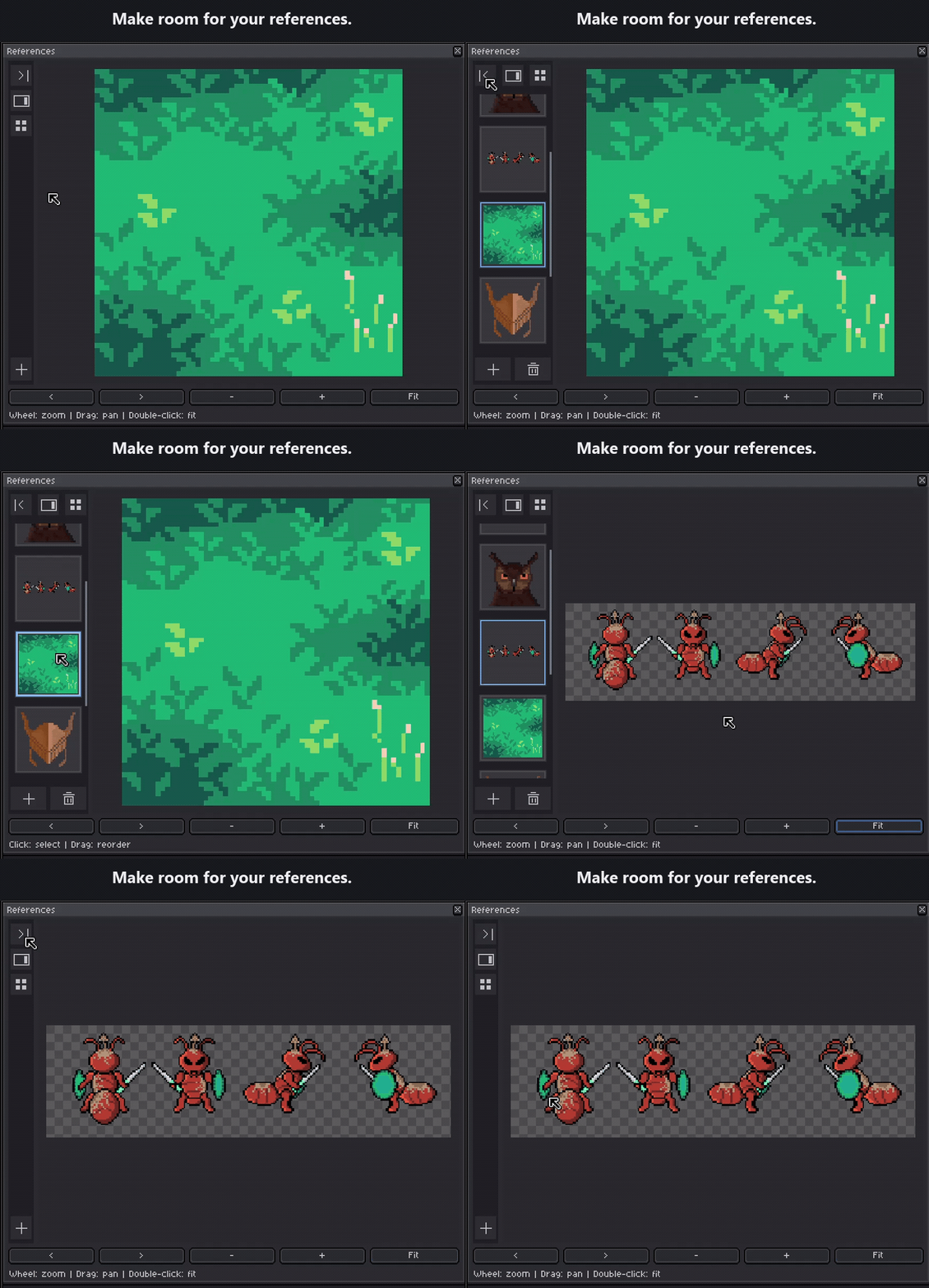
- Collapsible sidebar — Give your reference more room when you need it.
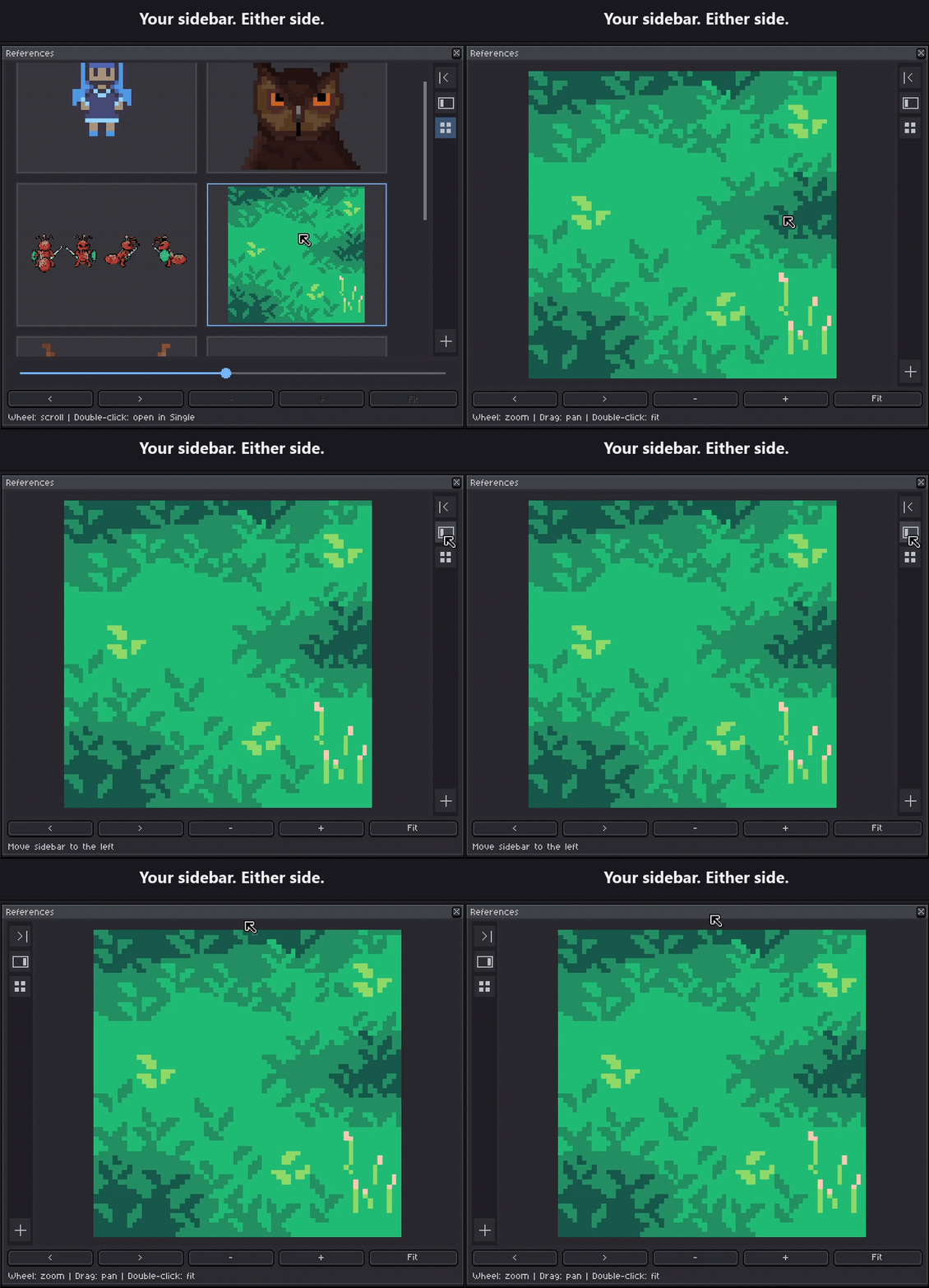
- Left or right placement — Position the sidebar to suit your workspace.
- Drag to reorder — Organize thumbnails with a visible insertion guide.
- Adjustable grid size — Choose how large references appear in Grid View.
- Contextual hints & hover highlights — Learn the controls without a crowded interface.
- Per-document persistence — Restore references, viewing settings, and panel position.
- Optional automatic opening — Show the panel when creating a new sprite.
Supports PNG, JPG/JPEG, BMP, GIF, ASE, and ASEPRITE files. Animated files are displayed as a still reference using their first frame.
A reference collection for each project
Your references belong to the drawing you’re working on.
For saved documents, Reference Panel stores a small configuration file beside your artwork:
your-artwork.aseprite.references.json
It remembers:
- Reference images and their order
- Selected reference
- Zoom and pan for each image
- Single or Grid viewing mode
- Grid size and scroll position
- Panel visibility, size, and position
Switch to another sprite and the panel follows that document’s reference collection. You can keep it open for one drawing and closed for another.
Sidebar placement, collapsed state, and automatic opening are global preferences.
Controls
Sidebar
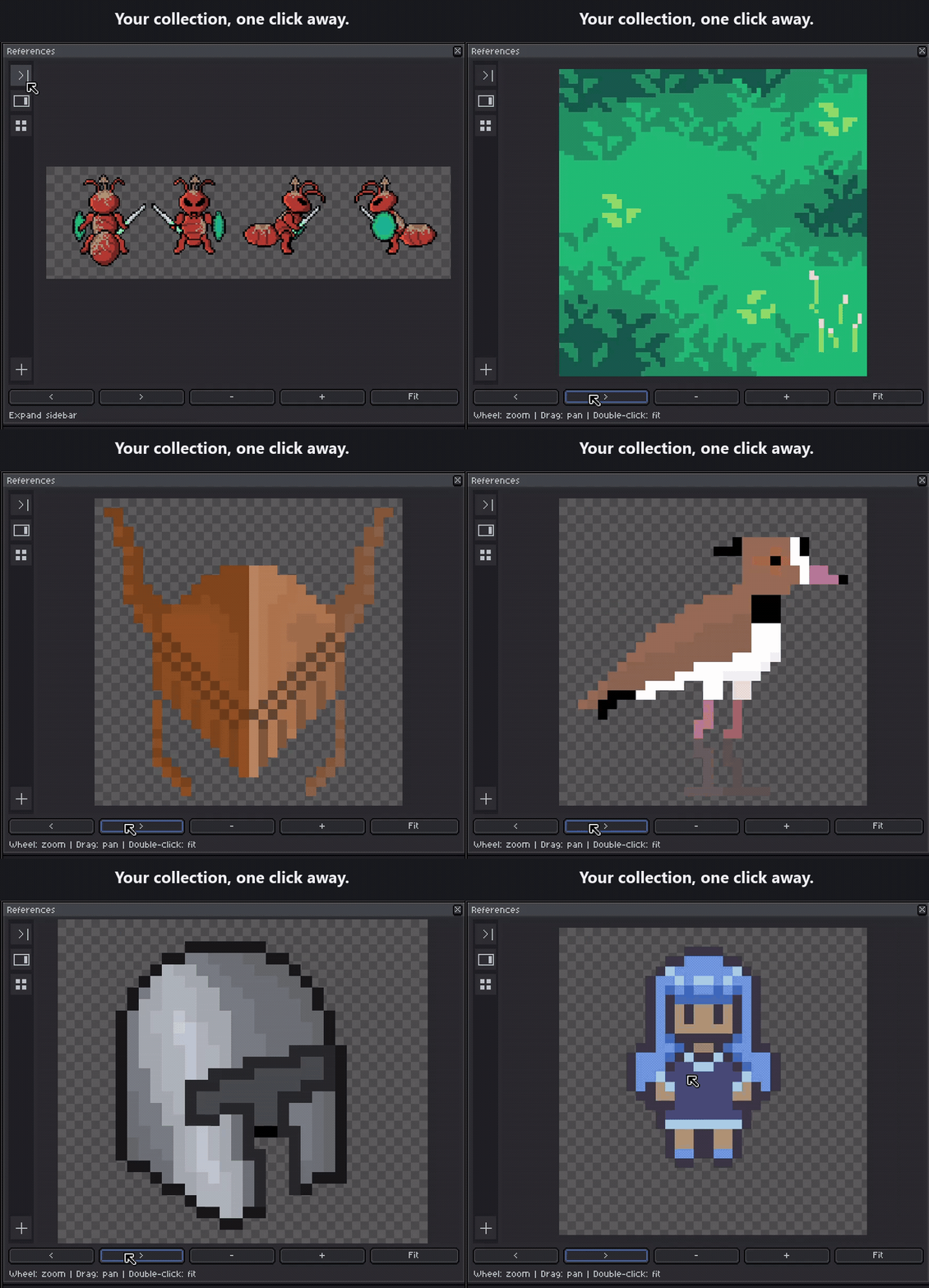
- Collapse / Expand — Make more room for your reference.
- Switch Side — Move the sidebar between left and right.
- Grid — Show all references. Click again to return to the selected image.
- Click a thumbnail — Open that image in Single View.
- Drag a thumbnail — Reorder references. A blue line shows the insertion point.
- Esc while dragging — Cancel reordering.
- Mouse Wheel — Scroll through thumbnails.
- + at the bottom — Add images. Use Ctrl or Shift in the file picker to select multiple files.
- Trash — Remove the selected reference from the collection without deleting its file.
Hover over sidebar controls to see a hint in the footer.
Single View
- Mouse Wheel — Zoom around the pointer.
- Click + Drag — Pan.
- Double Click or Fit — Fit the image to the available space.
- + / − in the toolbar — Zoom in or out.
- < / > — Switch between references.
Grid View
- Mouse Wheel — Scroll through the grid.
- Double Click a reference — Open it in Single View.
- Slider — Adjust reference tile size.
Move and resize the panel using its window frame.
Installation
- Download the
.aseprite-extensionfile. - In Aseprite, open Edit → Preferences → Extensions → Add Extension.
- Select the downloaded file and install it.
- Restart Aseprite.
- Open a drawing, then choose View → Reference Panel → Open for This Sprite.
To enable automatic opening for new drawings, use View → Reference Panel → Open Automatically for New Sprites.
If you used Reference Panel Sidebar Test, disable it before enabling the official version.
Requirements
- Windows
- Aseprite 1.3 or newer, with scripting API version 23 or later
- Windows PowerShell, used by the included multiple-image picker
Validated with Aseprite 1.3.18.5. The bundled file picker does not currently support macOS or Linux.
Why Reference Panel?
I wanted a simple way to keep visual references close while drawing in Aseprite, without constantly switching between image viewers, browser tabs, and separate reference applications.
Reference Panel keeps those images in the workspace and remembers them independently for each project.
Notes
Reference images are linked, not embedded in your .aseprite file.
The extension stores their paths in the .references.json file beside your artwork. Moving or deleting an image can break its link. Moving a project to another computer may require adding its reference images again.
Save your drawing to preserve its reference collection between sessions. The extension does not modify the artwork itself.
Dragging files directly from Explorer onto the panel is not supported; use the + button to add images.
Made for artists who would rather spend their time drawing than arranging reference windows.
Download
Click download now to get access to the following files:
Leave a comment
Log in with itch.io to leave a comment.